StudioOps
Console
Get your game ready for Xbox with the public certification rules.
What it isOverview
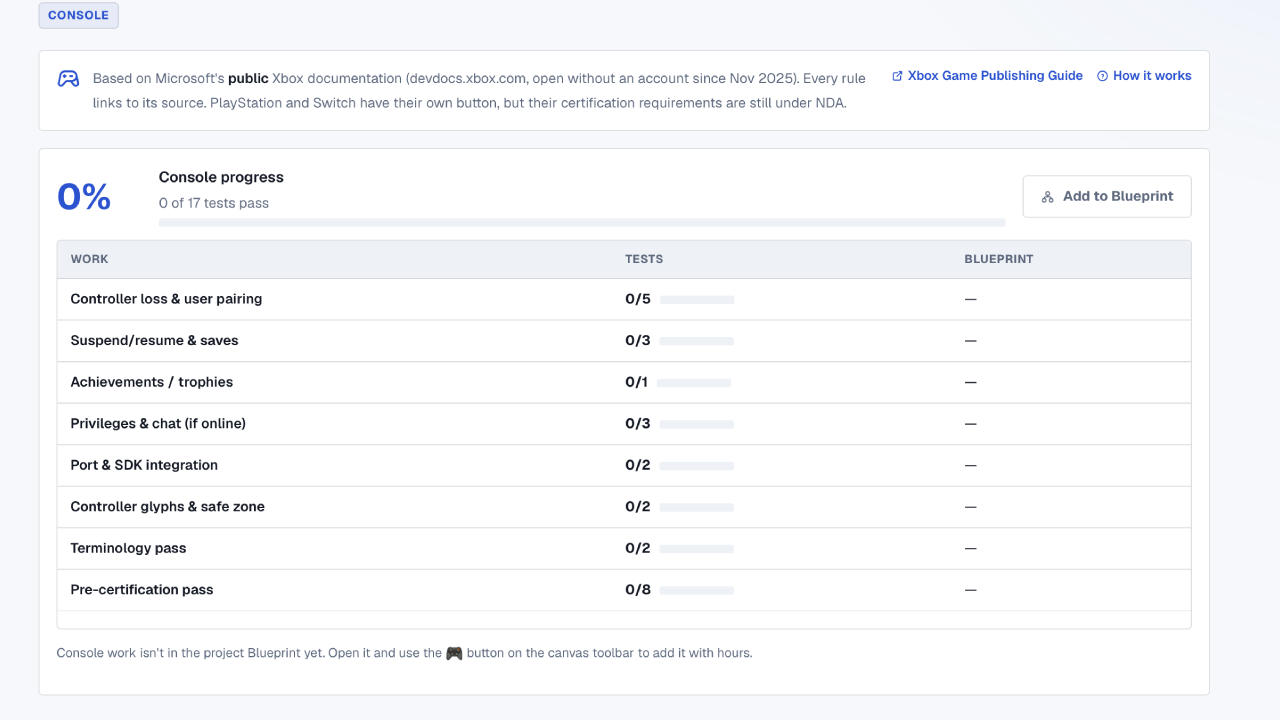
Console checks what fails most often when bringing a PC game to console, using Xbox's public documentation (the XRs, open since 2025): it reads your engine's controls file (Unity, Unreal or Godot) and tells you which actions have no button, shows how your controls read on Xbox, PlayStation and Switch, flags HUD outside the safe zone, guides controller-disconnect and user-change tests (XR-112/XR-115) and checks your text terminology (XR-022). Progress is measured per project and connected to the console work in Blueprint. If your studio needs porting support, it includes the path to ID@Xbox and its Developer Acceleration Program (DAP).
What it solvesProblems
| The problem | How it solves it |
|---|---|
| You don't know what Xbox requires until your build fails. | The most-failed XRs, with their share and how to test them, before you submit. |
| Your game was designed for keyboard and mouse. | Upload your input file and see which actions have no gamepad button and whether Confirm/Back are on A/B. |
| Console work wasn't in the budget. | One Blueprint button adds the console requirements; their progress shows on the Dashboard. |
How to use itHow to
- 1 Upload your controlsDrop your Unity .inputactions, Unreal DefaultInput.ini or project.godot. It's read in your browser.
- 2 Check the safe zoneLoad a screenshot and mark your HUD: anything outside the central 90% turns red.
- 3 Run the testsController disconnect, user change, suspend: mark Pass or Fail with notes.
- 4 Track progressThe percentage shows on the project page, the Dashboard and the Blueprint.
Try it with a real project
Every tool lives inside My Studio, connected to the same project.